Theme images by Storman. Powered by Blogger.

Software Testing

[best practices][feat1]

Recent

recentposts

Popular

Comments

recentcomments

Most Recent

Random Posts

randomposts

Facebook

page/http://facebook.com/letztest

Thursday, March 17, 2016

10 tips for improving the speed of selenium script execution

- No comments
As you all know Selenium WebDriver is amazing for test automation. But sometimes automation scripts are slow in general.

What do you do when the scripts are slow?

Do you accept that this is how things are?

Or try to find solutions?

Here are the top 10 tips for improving the speed of  selenium script execution.

Why Are Selenium WebDriver Scripts Slow  ?


We use the Selenium WebDriver framework for automating the functionalities of a web application.

Automation scripts are created using
  • a programming language
  • a unit testing framework
  • the Selenium WebDriver framework

When the automation script is executed, the following happen
  • the browser is started on the computer
  • the site is loaded in the browser
  • the script interacts with the site in the browser

Many factors can impact the script's speed:
  • if the computer is not fast, starting the browser is slow
  • if the internet connection is not fast, loading the site is slow
  • the site can be slow for many reasons (high number of concurrent users, slow servers)
               
10 Tips For Faster Scripts:


#1: Use Few and Fast Locators

When locating an element, start with the fast locators:
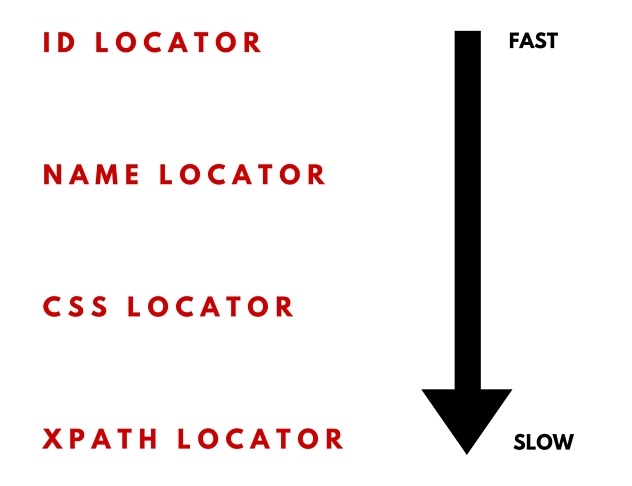
1. LOCATE ELEMENT BY ID
This works if the html element has the id attribute.
It is the fastest locator as it uses the optimized document.getElementById() JS command.


2.LOCATE ELEMENT BY NAME
This works if the element has a name attribute.

3. USE A CSS SELECTOR
It is faster than XPATH but not as flexible.

4. USE AN XPATH SELECTOR
This is the most flexible strategy for building locators.
Xpath selectors are slow as the page browser DOM is traversed for finding elements.

It is important that the script uses as few elements as possible, especially if using XPATH locators.

#2 - Use Only Explicit Waits


One of the best ways of making a script faster is by using explicit waits.
If your test scripts uses implicit waits (or delays)s,
WebDriver driver = new FirefoxDriver();
driver.manage().timeouts().implicitlyWait(10, TimeUnit.SECONDS);
driver.get(pageUrl);
WebElement element=driver.findElement(By.id(“myId"));

replace the implicit waits with explicit waits:

WebDriver driver = new FirefoxDriver();
WebDriverWait wait = new WebDriverWait(driver, 10);
driver.get(pageUrl);
WebElement element = wait.until(ExpectedConditions.
presenceOfElementLocated(By.id(“myId")));

The script performance is better with explicit waits.
Elements are accessed as soon as they are available.
No additional waiting times are needed.

#3 - Write Good Atomic Tests


ATOMIC TESTS

Each test should test a single tiny bit of functionality.
It is better to have more small scripts focused on one thing only than fewer big scripts that do too many things.
Each test has up to 20 steps.
Each test runs in under 10 seconds.
Having atomic tests is very useful in case of failures.
If any of the smaller tests fails, it is very clear where the problem is.

GOOD TESTS

Good tests are created by following a few simple rules:
1. Eliminate step duplication
2. Keep the scripts independent
3. Write just enough steps to go quickly from A to B
4. Remove steps that are not related to the final result

Good written tests are fast tests.

#4 - Use The Chrome Driver


If your test automation script needs a real browser but not a specific one,

Use the Chrome browser and the Chrome driver.

The Chrome browser is faster than IE, Firefox, Safari and Opera.
The Chrome browser driver is faster than the IE, Firefox, Safari browser drivers.


#5 - Use Headless Browser Drivers

If you don't need a real browser, headless browsers can make your script faster.
Headless browsers do not have a user interface.

The most popular headless browsers are:
1. HTML UNIT
- headless browser written in Java
- uses the RHINO engine (not used by any real browser)
- provides JS and ajax support, partial rendering capability

Example
driver = new HtmlUnitDriver();


2. PHANTOM JS
- headless browser that uses the WEBKIT layout engine (used in Chrome and Safari) for rendering web pages and Javascript Core for executing scripted tests
- uses Ghost Driver as an implementation of the WebDriver Wire Protocol


The following example shows how to create a Phantom JS Driver object.

Example:
DesiredCapabilities caps = DesiredCapabilities.phantomjs();
caps.setJavascriptEnabled(true);
caps.setCapability(“phantomjs.binary.path",
"c:\\selenium\\browserdrivers\\phantomjs.exe");
caps.setJavascriptEnabled(true);
driver = new PhantomJSDriver(caps);

#6 - Re-use The Browser Instance

A typical JUNIT class includes:
  1. setUp() method
  2. tearDown() method
  3. test scripts
The setUp() method uses the @Before annotation.
It runs before each script to create the driver object and open the browser.
The tearDown() method uses the @After annotation.
It runs after each script to destroy the driver object and close the browser.
Each test script uses its own browser instance:
setUp() –> Test Script 1 --> tearDown()
setUp() –> Test Script 2 --> tearDown()

The browser instance can be shared by all scripts when using different annotations:
  1. @BeforeClass for the setUp() method
  2. @AfterClass for the tearDown() method
In this case, the setUp() method runs before all test scripts.
The tearDown() method runs after all test scripts.
After each test script, the browser is not closed so the next script can re-use it:
setUp() --> Test Script 1 --> Test Script 2 --> tearDown()


#7 - Run Scripts In Parallel


By default, JUNIT test scripts run sequentially.
There are a few options for running them in parallel:
1. Run the scripts in parallel on the local computer
This is done by creating a Maven project in Eclipse and using the Maven Surefire plugin.
Maven Surefire allows methods or classes to be run in parallel.
It also allows the thread count to be set up.
Using Maven Surefire reduces the execution time with about 50%.

2. Use Selenium Grid
There's two reasons for using Selenium-Grid:
- to run your tests against multiple browsers, multiple versions of browser, on different operating systems.
- to reduce the time it takes for the test suite to complete
Selenium-Grid is used to speed up the execution of a test pass by using multiple machines to run tests in parallel.

3. Use Sauce Labs (selenium grid in the cloud)
It works similar with Selenium Grid,
But you don't need to set up the grid environment.
It has hundreds of combinations of browser/device/operating system available.

#8 - Use HTTP Parse Libraries


There are cases when Selenium WebDriver is not the best option for creating test scripts.
If the test script involves navigating through a lot of pages, using HTML parsing libraries like JSOUP is a better choice than Selenium WebDriver.


JSOUP is a Java library for working with real-world HTML.
It provides a simple API for extracting and manipulating data, using the DOM, CSS, and jquery-like methods.
JSOUP parses HTML to the same DOM as modern browsers do.
  • scrape and parse HTML from a URL, file, or string
  • find and extract data, using DOM traversal or CSS selectors
    0135b-cooking
  • manipulate the HTML elements, attributes, and text


How does a script using JSOUP look like?

@Test public void test1() {
Document resultsUrl = Jsoup.connect(basePageUrl).get();

Elements titles = resultsUrl.select(“span.title");


for (Element title : titles) {


Element link = title.child(0);


String detailsUrl = basePageUrl +link.attr(“href");


Document detailUrl = Jsoup.connect(detailsUrl).get();


Elements bookTitle = detailsUrl.getElementsByAttributeValue(“testid", “text_bibtitle");


if (bookTitle.size() > 0)

assertTrue(bookTitle.get(0).text().length() > 0);

Elements bookAuthor = detailUrl.getElementsByAttributeValue(“testid", “author_search");


if (bookAuthor.size() > 0)

assertTrue(bookAuthor.get(0).text().length() > 0);
}
}
}

#9 - Pre-Populate Cookies


Pre-populating site cookies can speed up scripts by avoiding additional site navigation.

Lets take the following test case:
  1. open the home page of a site
  2. execute a keyword search
  3. the results page is displayed with 10 results; language is english
  4. go to page 2 of results
  5. change the language to french; the page reloads in french
  6. change the number of results to 25; the page reloads with 25 results

For page 2, the script needs to
  • change the language through a listbox; the page reloads when a different language is selected.
  • change the number of results through another listbox; the page reloads with the new number of results


Since the page sets cookies when the results number and language change, it is easy to add cookies to the site before loading page 2.

This way, page 2 will load directly with 25 results, in french.

Code Sample:
public void addCookie(String name, String value) {

Cookie pageSize = new Cookie.Builder(name, value)

.domain(“vpl.bibliocommons.com")
.expiresOn(new Date(2016, 12, 31))
.isSecure(true)
.path(“/")
.build();

driver.manage().addCookie(pageSize);

}

@Test
public void testResult() throws InterruptedException {

//page opens in english with 10 results
driver.get(“https://vpl.bibliocommons.com/search?q=java&t=keyw...");

addCookie(“page_size", “25");
addCookie(“language", “fr-CA");

//page opens in french with 25 results
driver.get(“https://vpl.bibliocommons.com/search?page=2&q=java...");

}

#10 - Do Not Load Images


Many web pages are rich in images so they load slowly.
If the page loads slowly, the script is slow as well.
A page loads faster if no images are loaded.
Disabling images is done by setting up a new browser profile and disabling images for it in the Settings page.
In the test script, use the new browser profile when starting the browser driver:

1. In chrome type : chrome://version/
2. Using the console, navigate to the Chrome exe directory
3. type : chrome.exe –user-data-dir="your\custom\directory\path" to create your custom profile.
4. When chrome opens and asks for a new account to be created, decline
5. In Chrome, go to
Settings>
Advanced settings>
Privacy >
Content Settings >
Images >
Do Not Show Any Image
6. Close chrome. Reopen it again from the console with the same command sequence used in 3. Verify that it is not loading any images in a site
7. Now, in your code, create the capabilities for the driver using the new profile.
System.setProperty(“webdriver.chrome.driver", “C:\\Selenium\\BrowserDrivers\\chromedriver.exe");
ChromeOptions options = new ChromeOptions();
options.addArguments(“user-data-dir=C:\\Selenium\\ChromeProfile");
options.addArguments(“–start-maximized");

driver = new ChromeDriver(options);

Wednesday, February 10, 2016

Mobile Testing Challenges for the Software Testers in 2016

- No comments

1. Native vs Web-view

This has been a continuous problem that will most likely be around for a long time; the willingness to get an API ready and complete and not resorting to having to use web views and other clunky alternatives.

Testing a hybrid app in the sense that some parts are native and some parts are webviews is a particular pain in the butt. When using these two side-by-side you can pretty much always notice that native is faster so a webview will always look slower and buggy. There’s almost always a problem with the API and a webview talking to each other.

Solution: If you’re going to build an app, make sure you have all the APIs you need ready and raring to go before dev starts or early enough that something can be done about it.
If not go for all webviews and keep the app looking consistent in one form or another. At least this way it won’t be noticeably different as you traverse the app.


2. Mobile Test Automation

Mobile test automation isn’t in a great place – the market is dominated by either big player pushing sub-standard, expensive tools to ‘automate all the things’ or smaller open-source tools that are at the mercy of the mobile OS vendors.

Too many people still have an ‘automate all the things’ test strategy for mobile, not realising that doing this is even more fool-hardy than on desktop web. Mobiles are complicated and automating a lot via the app UI is not the best strategy at all.

Solution: Focus on understanding your application and the web services it most likely uses. Automate those first. Apply a small, light-weight automated UI test set using whatever automation tool suits you best. Be aware that the automation tool you use may stop working because an OS vendor cut’s access to APIs so have a plan B.


3. Fragmentation

There are soooo many Android devices out there that you can only test a small fraction of them. Add to that the different flavours of OS’s (Samsung adds something, other manufacturers do so too) and you have many potential risks.

Solution: I’d like it if only stock Android was used but hey…I can keep on dreaming I’m afraid. As far as I know, there’s no simple solution. You just have to engage with your customer and talk about which devices / OS’s must be tested (based on facts like most popular devices in your country etc).

4. Unexpected pop-ups

It’s hard to write a repeatable automation test script when at any given time, an ad or other alert-style window appears and obscures the screen below. This has been a problem since the creation of the GUI and is still a problem in 2016. (Ads are mostly the problem now.)

Solution: Create a routine that is always running in a background thread and scanning the screen for a list of “usual suspect” pop-up windows. And if found, perform the actions necessary to remove it — usually it’s sending an “Escape” key event. You also have to make the main script flexible enough to know to wait if it gets “stuck” by a pop-up.


5. In The Wild Testing

One of the biggest challenges software testers need to handle in 2016 is manual “In the wild testing”. The problem that I see, is that many software testers, test mobile applications in the same way as they would test web or desktop applications, always on the same place with the same Internet connection. But mobile apps are not the same like web or desktop applications. They are used in a total different environment with different Internet connections. If a mobile app is tested only with a fast and stable Internet connection lots of problems will not be covered during the testing and development phase.

Testing the app in the wild may find problems with:

  1. The light situation because of sun or rain.
  2. With the sensors because they are interfered by other elements such as buildings, cars or other obstacles.
  3. With the Internet connection. Due to the movement, uses have not always the same Internet connection and this has an impact to the mobile app under test. For example, the network switch from LTE to Edge may influence the UI or the information that will be processed between the backend and the mobile app.
The listed points are just some of the problems that will not be found in a lab situation.

Solution: The solution for this problem is pretty easy. Software testers must test outside the office. Depending on the use case of the app, the environment may change. For example if you are testing a business app, the app is likely used when people are commuting to or from work by train or car. Or if you are testing a sports app, that is tracking your workouts and activities, then you must test during this situations, too.

It is key for every software tester to test in the environment where the customers will use the app. I recommend to every software tester, to pack some devices in a backpack and to leave the office to test the app in the wild.

When testing in the wild it is important that the app under test is using a crash reporting tool like HockeyApp or Crashlytics to record any kind of problems that may happen during the test scenarios. Besides that I recommend to have just a pen and a piece of paper with you to make notes when discovering a problem.

Different kind of Exceptions occuring In Selenium WebDriver.

- No comments

While automation it's quite common that we all come across different kind of Exceptions occurring In Selenium WebDriver.

 Lets see few Exceptions and what’s the reason for those !!!!  I hope this post will help you in memorizing such exceptions which you have been facing.


NoSuchElement : An element could not be located on the page using the given search parameters.


NoSuchFrame : A request to switch to a frame could not be satisfied because the frame could not be found.

StaleElementReference : An element command failed because the referenced element is no longer attached to the DOM.

Firefox Not Connected : Firefox browser upgraded toop new version.

ElementIsNotSelectable : An attempt was made to select an element that cannot be selected.

UnknownCommand : The requested resource could not be found, or a request was received using an HTTP method that is not supported by the mapped resource.

ElementNotVisible : An element command could not be completed because the element is not visible on the page.

InvalidElementState : An element command could not be completed because the element is in an invalid state (e.g. attempting to click a disabled element).

UnknownError : An unknown server-side error occurred while processing the command.

JavaScriptError : An error occurred while executing JavaScript code.

XPathLookupError : An error occurred while searching for an element by XPath.

Timeout : An operation did not complete before its timeout expired.

NoSuchWindow : A request to switch to a different window could not be satisfied because the window could not be found.

InvalidCookieDomain : An illegal attempt was made to set a cookie under a different domain than the current page.

UnableToSetCookie : A request to set a cookie’s value could not be satisfied.

UnexpectedAlertOpen : A modal dialog was open, blocking this operation

NoAlertOpenError : An attempt was made to operate on a modal dialog when one was not open.

ScriptTimeout : A script did not complete before its timeout expired.

InvalidElementCoordinates : The coordinates provided to an interactions operation are invalid.

IMENotAvailable : IME was not available.

IMEEngineActivationFailed : An IME engine could not be started.

InvalidSelector : Argument was an invalid selector (e.g. XPath/CSS).

Hope this post helps you guys…! And Please Correct me if there is something to be added…! ;)

A Detailed Guide on different type of Selenium WebDriver Wait

- No comments
In automation, waiting is having the automated task execution elapse a certain amount of time before continuing with the next step. Selenium WebDriver provides various commands for implementing wait. In this post, we have listed out all the Selenium WebDriver wait commands for your reference.

Conceptually, Selenium WebDriver wait commands can be divided in various different categories. These are implicit wait, explicit wait, timeout, expected conditions, fluent wait etc. We will go through each one of them with their usage in this post. Whenever possible, we have provided code snippets for clear understanding. Implicit Wait: Implicit wait tells Selenium instance to wait for specified amount of time before throwing an exception. The default setting is 0. Let’s see how implicit wait works. While execution, if WebDriver cannot find element to act upon immediately, it will wait for specified amount of time. During this time, no attempt is made to find an element. After completion of specified time, WebDriver will try to find an element once. Exception is displayed if element is not found after that. Once set, the implicit wait is set for the life of the WebDriver object instance. That means it will be available for the entire time the browser is open.

Implicit wait can be implemented by using below code.


driver.manage().timeouts().implicitlyWait(30, TimeUnit.SECONDS);
  
Explicit Wait: As the name suggests, we explicitly instruct WebDriver for waiting by using explicit wait. By using custom coding, we tell Selenium WebDriver to wait for some expected condition. Why use explicit wait when implicit wait is in place and doing good already? Glad you asked. Well, you may encounter instances when some element takes more time to load. Setting implicit wait for such cases doesn’t make sense as browser will wait unnecessarily for the same time for every element, increasing the automation time. Explicit wait helps here by bypassing implicit wait altogether for some specific elements.

Now let’s see how explicit wait works. WebDriver provides WebDriverWait and ExpectedConditions classes to implement explicit wait. Below code shows using WebDriverWait and ExpectedConditions for explicit wait. In this code, WebDriver will wait for 10 seconds before throwing a TimeoutException. If element is found, it will be returned in 0-10 seconds.


1
WebElement someElement = (new WebDriverWait(driver, 10)).until(ExpectedConditions.presenceOfElementLocated(By.id("elemendId")));

WebDriverWait by default calls the ExpectedCondition every 500 milliseconds until it returns successfully. ExpectedConditions class has some predefined common conditions to wait for an element.

Fluent Wait:
Unlike implicit and explicit wait, fluent wait uses two parameters. Timeout value and polling frequency. Let’s say we have timeout value as 30 seconds and polling frequency as 2 seconds. WebDriver will check for element for every 2 seconds until timeout value (30 seconds). After timeout value is exceeded without any result, exception is thrown. Below is a sample code which shows implementation of fluent wait.


1
2
3
4
5
6
7
Wait wait = new FluentWait(driver).withTimeout(30, SECONDS).pollingEvery(2, SECONDS).ignoring(NoSuchElementException.class);
 
  WebElement testElement = wait.until(new Function() { 
    public WebElement apply(WebDriver driver) { 
    return driver.findElement(By.id("testId")); 
  }
});

Another advantage of using fluent wait is, we can ignore specific types of exceptions (Eg. NoSuchElementExceptions) while waiting. Due to all these provisions, fluent wait is helpful in AJAX applications as well as in scenarios when element load time fluctuates often. Strategic use of fluent wait significantly improves automation efforts.

Timeouts:
Apart from waits mentioned about, Selenium WebDriver provides timeouts. There are two timeouts supported: pageLoadTimeout and setScriptTimeout. Let’s go through each one of them.
pageLoadTimeout: It sets the amount of time to wait for a page load to complete before throwing an error. If the timeout is negative, page loads can be indefinite. Use below code to implement pageLoadTimeout.


1
driver.manage().timeouts().pageLoadTimeout(100, SECONDS);

setScriptTimeout: It sets the amount of time to wait for an asynchronous script to finish execution before throwing an error. If the timeout is negative, then the script will be allowed to run indefinitely. Use below code to implement setScriptTimeout.

1
driver.manage().timeouts().setScriptTimeout(100,SECONDS);

Sleeper:
Using sleeper in your Selenium tests is not a good practice and should be avoided. Reason for this is, it forces browser to wait for specified amount of time. It unnecessarily delays other automation steps. You can implement sleeper in your test with below code.

1
thread.sleep(5000);

Here time value is in milliseconds.

You should always consider context while using Selenium WebDriver wait in your automation activities. Proper usage of waits would make your test robust and efficient. With that we hope our coverage of different Selenium WebDriver wait above will be helpful to you. Let us know your views on this.

Wednesday, January 29, 2014

10 Things You Can Do to Become a Better Tester

- No comments
Not just anyone can claim to be an exceptional software tester. Software testing requires a unique skill set, and the best software testers are the ones that continuously strive to expand their knowledge and hone their testing strategies.

In short, good testers always want to get better.

So how can you become a better tester?

  1. Test for quality over quantity: “Here’s 10,000 bugs… good luck!” Testers, please don’t ever shoot for quantity. Identifying the most important bugs and glitches, and helping the company or developer make sense of the bugs is ten times more helpful then testing for mere volume.  
  2.  Learn to prioritize: In line with “quality over quantity”, prioritizing what you test is extremely important. Testing the mission critical parts of an application before the minute details of an app will help you to identify the most valuable bugs first. This will also allow the development team to fix the most imperative parts of their application as quickly as possible.
  3. Practice and improve your written communication skills: Everyone can right, write? (Ha!). Good testers must have excellent written communication skills in order to write good test cases, bug reports and so on. These testing artifacts are an essential part of QA and must be detailed and easy to consume.
  4. Learn from your own mistakes – and from others too:  Everyone makes mistakes, but learning from others and from your own will make you better tester. How can you improve your bug report next time? How can you prioritize better during the next test cycle? How can you communicate better with the development team? These are questions you should constantly be asking yourself, and your fellow testers.
  5. Be objective and professional: Every time you test, go at it with a fresh perspective. Look at the software you are testing without bias or past experience, and test with an open mind. Testers who think “Oh, I know this software” or “I’ve used this before” are at risk of overlooking important bugs. Objectivity is key.
  6. Don’t be humble with software… think out of the box: Explore the software, ‘test to break’ and be willing to suggest improvements; these are all attributes that make up the attitude of a good software tester.
  7. Question. Everything: Does this work as intended? Does it work on all devices? Does it work under every possible use-case, every time? Question. Everything.  
  8. Think like the user: Remember; your job is to find bugs before the software reaches the hands of users. Pair your technical skills with an end-user’s mindset and you will find the best, most valuable bugs possible.
  9. Increase the effectiveness of bug reports: Attaching screen shots and providing detailed bug reports will give the developer the information he or she needs to understand the bug and fix it. Where did it occur, when, how many times, on what devices, running what operating system and under what circumstances? Without the right details a bug is useless to a development team.
  10. Be Passionate! To excel in any field, you need to be passionate for what you do. Read, seek new training opportunities, engage with your fellow testers, attend testing conference, classes – immerse yourself in all things QA.
What do you think it takes to become a better tester? Share your thoughts with us in the comments section

Monday, January 6, 2014

Top 10 Negative Test Cases

- No comments
Negative test cases are designed to test the software in ways it was not intended to be used, and should be a part of your testing effort. Below are the top 10 negative test cases you should consider when designing your test effort: 
 
Embedded Single Quote - Most SQL based database systems have issues when users store information that contain a single quote (e.g. John's car). For each screen that accepts alphanumeric data entry, try entering text that contains one or more single quotes. 

Required Data Entry - Your functional specification should clearly indicate fields that require data entry on screens. Test each field on the screen that has been indicated as being required to ensure it forces you to enter data in the field. 

Field Type Test - Your functional specification should clearly indicate fields that require specific data entry requirements (date fields, numeric fields, phone numbers, zip codes, etc). Test each field on the screen that has been indicated as having special types to ensure it forces you to enter data in the correct format based on the field type (numeric fields should not allow alphabetic or special characters, date fields should require a valid date, etc). 

Field Size Test - Your functional specification should clearly indicate the number of characters you can enter into a field (for example, the first name must be 50 or less characters). Write test cases to ensure that you can only enter the specified number of characters. Preventing the user from entering more characters than is allowed is more elegant than giving an error message after they have already entered too many characters. 

Numeric Bounds Test - For numeric fields, it is important to test for lower and upper bounds. For example, if you are calculating interest charged to an account, you would never have a negative interest amount applied to an account that earns interest, therefore, you should try testing it with a negative number. Likewise, if your functional specification requires that a field be in a specific range ( e.g. from 10 to 50), you should try entering 9 or 51, it should fail with a graceful message. 

Numeric Limits Test - Most database systems and programming languages allow numeric items to be identified as integers or long integers. Normally, an integer has a range of -32,767 to 32,767 and long integers can range from -2,147,483,648 to 2,147,483,647. For numeric data entry that do not have specified bounds limits, work with these limits to ensure that it does not get an numeric overflow error. 

Date Bounds Test - For date fields, it is important to test for lower and upper bounds. For example, if you are checking a birth date field, it is probably a good bet that the person's birth date is no older than 150 years ago. Likewise, their birth date should not be a date in the future. 

Date Validity - For date fields, it is important to ensure that invalid dates are not allowed (04/31/2007 is an invalid date). Your test cases should also check for leap years (every 4th and 400th year is a leap year). 

Web Session Testing - Many web applications rely on the browser session to keep track of the person logged in, settings for the application, etc. Most screens in a web application are not designed to be launched without first logging in. Create test cases to launch web pages within the application without first logging in. The web application should ensure it has a valid logged in session before rendering pages within the application.

Performance Changes - As you release new versions of your product, you should have a set of performance tests that you run that identify the speed of your screens (screens that list information, screens that add/update/delete data, etc). Your test suite should include test cases that compare the prior release performance statistics to the current release. This can aid in identifying potential performance problems that will be manifested with code changes to the current release.

Some Major Test cases for web application cookie testing:

- No comments
What is a Cookie? 

Cookie is to be known as text a file that gets saved in the hard disk of the user’s system. Browsers are required to use the cookies which have been saved in the desired location. Informative data is recorded in the cookie and that can be retrieved for the web pages.

The first test case is to test if your application is writing cookies properly on disk. You can use the Cookie Tester application also if you don’t have any web application to test but you want to understand the cookie concept for testing.

Test cases: 

1) As per the Cookie privacy policy make sure from your design documents that no personal or sensitive data is stored in the cookie.

2) If you have no option than saving sensitive data in cookie, you must make sure that the data stored in a cookie is stored in an encrypted format.

3) Make sure that there is no overuse of cookies on your site under test. Overuse of cookies will annoy users if browser is prompting for cookies more often and this could result in loss of site traffic and eventually loss of business.

4) Verify that If you are using cookies on your site, your sites major functionality will not work by disabling the cookies.  There should not be any page crash due to disabling the cookies. (Please make sure that you close all browsers, delete all previously written cookies before performing this test)

5) Verify that on Disabling the cookies appropriate messages Should be displayed to user like “For smooth functioning of this site make sure that cookies are enabled on your browser” while navigate through Site.

6) Verify that there should not be any page crash due to disabling the cookies.
Note:Please make sure that you close all browsers, delete all previously written cookies before performing this test)

7) Verify that your web application page is writing the cookies properly on different browsers as intended and site works properly using these cookies. You can test your web application on Major used browsers like Internet explorer (Various versions), Mozilla Firefox, Netscape, Opera etc.

8) Verify that cookies written by one domain can not accessed by another browser.

9) Verify that Corrupted cookies can not be accessible by other domain.
Note: Corrupting cookie is easy. You know where cookies are stored. Manually edit the cookie in notepad and change the parameters to some vague values. Like alter the cookie content, Name of the cookie or expiry date of the cookie and see the site functionality. In some cases corrupted cookies allow to read the data inside it for any other domain. This should not happen in case of your web site cookies.

10)  Accepts/Reject some cookies: The best way to check web site functionality is, not to accept all cookies. If you are writing 10 cookies in your web application then randomly accept some cookies say accept 5 and reject 5 cookies. For executing this test case you can set browser options to prompt whenever cookie is being written to disk. On this prompt window you can either accept or reject cookie. Try to access major functionality of web site. See if pages are getting crashed or data is getting corrupted.

11) Delete cookie: Allow site to write the cookies and then close all browsers and manually delete all cookies for web site under test. Access the web pages and check the behavior of the pages.

12) Checking the deletion of cookies from your web application page: Some times cookie written by domain say rediff.com may be deleted by same domain but by different page under that domain. This is the general case if you are testing some ‘action tracking’ web portal. Action tracking or purchase tracking pixel is placed on the action web page and when any action or purchase occurs by user the cookie written on disk get deleted to avoid multiple action logging from same cookie. Check if reaching to your action or purchase page deletes the cookie properly and no more invalid actions or purchase get logged from same user.

13) If your web application is using cookies to maintain the logging state of any user then log in to your web application using some username and password. In many cases you can see the logged in user ID parameter directly in browser address bar. Change this parameter to different value says if previous user ID is 456 then make it 452 and press enter. The proper access message should be displayed to user and user should not be able to see other users account.

14) In case of online shopping portal testing ,Verified that when user reach to final order summary page,cookie of previous page  i.e. shopping cart page should be deleted properly.

15) Verified that credit card number should not be stored in cookies not even in encrypted form.

These are some Major test cases to be considered while testing website cookies. You can write multiple test cases from these test cases by performing various combinations. If you have some different application scenario, you can mention your test cases in comments below.