Theme images by Storman. Powered by Blogger.

Software Testing

[best practices][feat1]

Recent

recentposts

Popular

Comments

recentcomments

Most Recent

Random Posts

randomposts

Facebook

page/http://facebook.com/letztest
Showing posts with label selenium webdriver. Show all posts

Wednesday, August 3, 2016

Selenium 3 is finally released - First impressions of Selenium WebDriver 3.0.0 beta 1

- No comments

And now it's official. Selenium has released it's beta version of Selenium 3.0. 

 Let's go through some of the highlights of the Selenium road-map, which will enable the companies to find plenty of time to figure out what changes to implement in their test suites.

What are the changes going to be between Selenium 2.0 and Selenium 3.0?

One of the biggest change is that the old Selenium Core libraries will be dropped in 3.0. The focus will shift completely to the WebDriver API. 

For the last six years it has been advised to switch to the newer WebDriver APIs and to stop using the original RC APIs. With Selenium 3.0, the original implementation of RC has been removed, replaced by one that sits on top of WebDriver. For many users, this change will go completely unnoticed, as they’re no longer using the RC APIs.

How significant is the removal of Selenium Core?

Most users are already writing tests with WebDriver, so this change won't really impact those users. But for the users of Selenium Core, there may be some significant work ahead if they want to migrate to the future, supported versions of Selenium. They'll need to migrate their tests to WebDriver, but there are ways to preserve your existing investment in tests even if they're older Selenium Remote Control (Selenium RC) tests.

What is the background and status for the W3C WebDriver specification? What is the advantage of having a specification?

The WebDriver API has grown to be relevant outside of Selenium. It is used in multiple tools for automation. For example, it's used heavily in mobile testing through tools such as Appium and iOS Driver. The W3C standard will encourage compatibility across different software implementations of the WebDriver API.

There is a working draft available currently, and the working group hopes to have it finished by the end of the year.

After that first specification is complete and in the browser vendors' hands, work will start on W3C WebDriver Level 2, which will focus on testing standard web user notifications such as allowing geolocation or other, deeper level access through the browser, and access to the shadow DOM.

What are the important Changes?

* Minimum java version is now 8+

* The original RC APIs are only available via the leg-rc package.

* To run exported IDE tests, ensure that the leg-rc package is on the
  classpath.

* Support for Firefox is via Mozilla's geckodriver. You may download
  this from https://github.com/mozilla/geckodriver/releases

* Support for Safari is provided on macOS (Sierra or later) via
  Apple's own safaridriver.

* Support for Edge is provided by MS:
  https://developer.microsoft.com/en-us/microsoft-edge/tools/webdriver/

* Official support for IE requires version 9 or above. Earlier
  versions may work, but are no longer supported as MS has
  end-of-lifed them.
* New html-table runner backed by WebDriver.

* Unused command line arguments are now no longer parsed.
* maven packaging fixes

* Update GeckoDriver --port argument in all bindings

* System property webdriver.firefox.marionette now forces the server in marionette 
  or legacy firefox driver mode, ignoring any related Desired Capability.

* Grid fix NPE's on registration when -browser not specified.

 What are the changes to be done in using firefox driver ?
If you are using Selenium 3 then to work with Firefox browser you need to use separate a driver which will interact with Firefox browser. If you have noticed then we have done the same thing for Chrome and IE browser as well. One important thing in this post is even if you are using Firefox beta version then it will work. If you are using firefox 47 and so on then it will work.

Let us see how to use the Firefox Marionette Driver

Let’s run a basic program with Selenium 3 beta version

Program 1 without any driver


Output console

The path to the driver executable must be set by the webdriver.gecko.driver system property;

As you can see to work with Firefox we have to set the property now.  You can download the driver from Github and then you can extract and you will get .exe file.

Download URL – https://github.com/mozilla/geckodriver/releases/tag/v0.9.0

 Complete program for Firefox in Selenium using geckodriver

Now you can run the program and you will get expected output.

Firefox Marionette Driver, how to use the Firefox Marionette Driver, selenium, selenium 3, selenium webdriver

Wednesday, May 4, 2016

Cheat Sheet for Selenium Webdriver

- No comments


We know there are plenty of cheat sheets for various languages, libraries etc.  I am sure this cheat sheet is gonna help the one's who have started learning Selenium.

This sheet for selenium web driver provides all the important and commonly used methods, operations and commands for your easy daily access.

Selenium WebDriver Cheat Sheet


I hope this list gives you an idea on the basics of Selenium. This post was actually found in .

By the way, did I miss something? I would love to hear from you.

Happy Testing, as usual. :)

Wednesday, April 27, 2016

How to verify if a checkbox is checked using Selenium Webdriver

- No comments

It's quite a common scenario that we may come across where we need to verify if a particular check box is checked. If not checked we may want to mark it as checked. In this post let's see 

how to check if a checkbox is selected in Selenium WebDriver with C#

First of all make the check-box as a web-element.

Or using findElements code You could instead do as shown below,


What do you think on above selenium topic. Please provide your inputs and comments. You can write to me at meanurajsl@gmail.com.

Monday, April 11, 2016

How to download PDF files automatically in Firefox using Selenium WebDriver

- No comments

Here I am trying to explain you, how to download PDF files automatically in Firefox using Selenium WebDriver.

I always believe that learning through examples are the right and easiest way and hence let's see a  complete example of how to save PDF files automatically in Firefox using Selenium WebDriver.

1:  # Environment Tested:  
2:  # Windows 7, Ruby 2.0.0p451, Selenium 2.41.0, Firefox 29.0.1  
3:  require 'selenium-webdriver'  
4:  profile = Selenium::WebDriver::Firefox::Profile.new  
5:  profile["browser.download.folderList"] = 2  
6:  profile["browser.download.dir"] = 'C:\\'  
7:  profile["browser.helperApps.neverAsk.saveToDisk"] = 'application/pdf'  
8:  # disable Firefox's built-in PDF viewer  
9:  profile["pdfjs.disabled"] = true  
10:  # disable Adobe Acrobat PDF preview plugin  
11:  profile["plugin.scan.plid.all"] = false  
12:  profile["plugin.scan.Acrobat"] = "99.0"  
13:  driver = Selenium::WebDriver.for :firefox, :profile => profile  
14:  driver.get('http://static.mozilla.com/moco/en-US/pdf/mozilla_privacypolicy.pdf')  

A walk-through

Prevent Firefox from popping up "Save file" dialog

You may know that Selenium itself doesn't interact with system-level dialogs, in order to download PDFs as part of the browser automation process, it requires the help from either additional 3rd party frameworks or a better approach that could handle the downloading automatically.


Firefox's download manager preferences are controlled by some properties defined in about:config page, which can be set programmatically while instantiating FirefoxDriver using Selenium WebDriver.
  • browser.download.folderList controls the default folder to download a file to. 0 indicates the Desktop; 1 indicates the systems default downloads location; 2 indicates a custom folder.
  • browser.download.dir holds the custom destination folder for downloading. It is activated if browser.download.folderList has been set to 2.
  • browser.helperApps.neverAsk.saveToDisk stores a comma-separated list of MIME types to save to disk without asking what to use to open the file.
1:  profile = Selenium::WebDriver::Firefox::Profile.new  
2:  profile["browser.download.folderList"] = 2 # use the custom folder defined in "browser.download.dir" below  
3:  profile["browser.download.dir"] = 'C:\\'  
4:  profile["browser.helperApps.neverAsk.saveToDisk"] = 'application/pdf'  

It is worth noting that the MIME type defined here is application/pdf, which is a type that most PDF files use. However, if the target PDF file has a non-standard MIME type, then "Save file" dialog might still show up. In order to fix this issue, the actual MIME type has to be added into browser.helperApps.neverAsk.saveToDisk property, which can be checked out using either of the following approaches:
  • Upload file to online tools like What MIME?
  • Download file and monitor MIME type in Chrome's developer tool or web debugging proxy like Fiddler, Charles, etc.

Prevent Firefox from previewing PDFs

For built-in PDF.js viewer

With the release of Firefox 19.0, PDF.js has been integrated into Firefox to provide built-in ability of displaying PDF files inside browser. It tries to parse and render PDFs into HTML5, which can be automated using Selenium WebDriver in theory. However, to download PDFs instead of preview in Firefox, another about:config entry needs to be changed to disable PDF.js.
1:  profile["pdfjs.disabled"] = true  

For third party PDF viewers

Except for Firefox's built-in PDF viewer, there might be other third party plugins preventing Firefox from downloading PDFs automatically. If a machine has Adobe Reader installed, then default PDF viewing setting in Firefox might have been set to Adobe Acrobat without notice.
To avoid previewing PDFs with those plugins, two more about:config entries need to be configured when starting WebDriver instance.
  • plugin.scan.plid.all needs to be false, so that Firefox won't scan and load plugins.
  • plugin.scan.Acrobat is a key that holds the minimum allowed version number that Adobe Acrobat is allowed to launch. Setting it to a number larger than currently installed Adobe Acrobat version should do the trick.
1:  profile["plugin.scan.plid.all"] = false  
2:  profile["plugin.scan.Acrobat"] = "99.0"  

Friday, April 1, 2016

5 things to remember while going for Software Test Automation

- No comments

Usually in testing, there is a saying that: 'if you do something more than once – automate it'. Software testing, where we routinely perform similar actions, is a perfect base for automation. In the modern software development, with the use of continuous deployment approach and microservices, everyone wants to deliver features fast and often. Therefore, test automation becomes even more important, yet still facing some common problems. Based on my experience, here is my list of top 5 things to remember while going for Software Test Automation.

Stability

Always-red ? False Fails? We all know that. Stability of automated tests is one of the most obvious issues, yet most difficult to obtain. Even big players like LinkedIn or Spotify admit to have struggled with it. While designing your automation, you should put extra attention to stability, as it is the most frequent cause of failure and test inefficiency. Writing tests is just a beginning, thus you should always plan some time in sprint for maintenance and revisions.

UI perspective

Majority of modern applications are web-based, therefore the most preferable way for functional testing is from the UI perspective. Despite their usefulness, browser tests also have some substantial problems like slow execution time or stability randomness.  Since we’re in the world of microservices, it’s worth to consider dividing tests into layers – testing your application features directly through webservices integration (or backend in general) and limiting UI tests to a minimal suite of smoke tests would be more efficient.

Overmocking:

Because of many dependencies over the systems, mocking services become a popular pattern and are also often forced over test environment limitations. However, you should pay great attention to the volume of your mocked checks – mocks can miss the truth or be outdated, so your development would be held on false assumptions. There’s a saying: “Don’t mock what you don’t own”, which means you can stub only these pieces of architecture that you’re implementing. This is a proper approach when you test integration with the external system, but what if you want to assume stable dependencies and test only your implementation? Then yes, you mock everything except what-you-own. To sum up, the mocking and stubbing strategy can differ depending on test purposes.

Tight coupling with framework

That’s a tricky one. Developers often tend to choose frameworks and tools based on the current trends. The same applies to test frameworks where we have at least a few great frameworks to use just for a test runner, not to mention the REST client, build tool and so on. While choosing a technology stack, we should bear in mind the necessity to stay as much independent from tools as we can – it’s the test scenario that is the most important, not the frameworks.

Keep it simple

Depending on your team structure, acceptance tests are implemented by developers or testers. Usually the developers are better in writing code, while the testers have a more functional approach (it’s not a rule, though). Automated test are not a product itself, but rather a tool, therefore I would put functionality over complexity. Your test codebase is nearly as big as the tested system? Try to categorize tests according to their domain or type. Adding new tests requires a time-consuming code structure analysis? Sometimes a more verbose (but more readable) code is better for your tests than complex structures.

 Summary


It takes proper planning, realistic expectations and a solid commitment to make test automation work. The worst-case scenario that can happen to your automated tests is abandoning them due to relatively simple, yet common issues. Time saved by automating simple test cases can be used for executing more complex scenarios manually, and that leads to better software quality and higher employee motivation in general.

If you have some other interesting experiences with test automation, please comment below!

Wednesday, March 23, 2016

Is maintenance of Selenium Scripts - a hell ???

- No comments
Most times we find ourselves scratching our heads and thinking, 'Why did it fail? It was working perfectly in the local server....'. Timeout or 'Session ID is null or Element not found' (my favorite) errors can be especially annoying when we are currently working on the most famous testing task: make all test pass. Let's analyze together how to fix this unhealthy situation.

First of all we need to redefine our task with management. Why so? Having dummy test methods is definitely not what we want to achieve (and not what managers expect from us). Our real task can be defined as:

Make your tests cover as many functionalities as possible, but avoid false results at ALL COSTS.

I emphasized 'all costs' because I want to make a point which you may find controversial:

Even the most important tests should be excluded from automated suite if they are unstable. After exclusion we need to:

a) prioritize test-fixing task (according to test importance/coverage)
b) perform manual test until automated one isn't stable

Certainly do not run test locally (and do not force programmers to do that...). This approach leads to nowhere.

I know we shouldn't, but what if we depend on other services, DBs, factors?Automated test dependencies should be verified before test execution, and if such one exists test should be ignored.

There is one thing which we often forget about. As a QAs/testers we are responsible for building trust in automated tests throughout team/company. False test results are the single most important factor which reduces (or even destroys) this trust.

Even from the most selfish perspective there is important argument against non-stable tests. Writing/maintaining tests with false results will combine you work image in the eyes of others with word 'FAILURE'. Avoid it at all costs.

Thursday, March 17, 2016

10 tips for improving the speed of selenium script execution

- No comments
As you all know Selenium WebDriver is amazing for test automation. But sometimes automation scripts are slow in general.

What do you do when the scripts are slow?

Do you accept that this is how things are?

Or try to find solutions?

Here are the top 10 tips for improving the speed of  selenium script execution.

Why Are Selenium WebDriver Scripts Slow  ?


We use the Selenium WebDriver framework for automating the functionalities of a web application.

Automation scripts are created using
  • a programming language
  • a unit testing framework
  • the Selenium WebDriver framework

When the automation script is executed, the following happen
  • the browser is started on the computer
  • the site is loaded in the browser
  • the script interacts with the site in the browser

Many factors can impact the script's speed:
  • if the computer is not fast, starting the browser is slow
  • if the internet connection is not fast, loading the site is slow
  • the site can be slow for many reasons (high number of concurrent users, slow servers)
               
10 Tips For Faster Scripts:


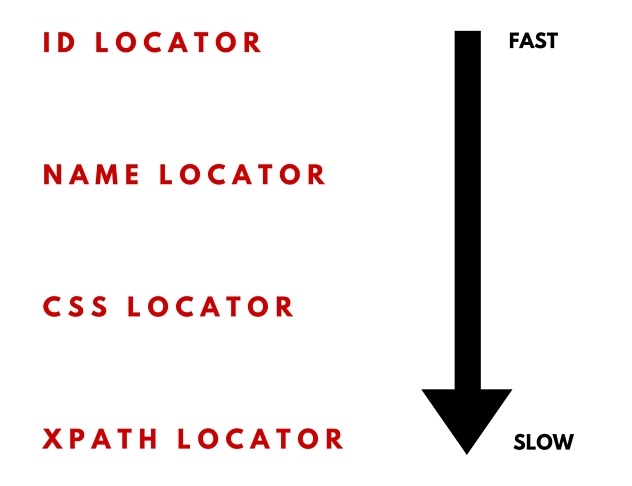
#1: Use Few and Fast Locators

When locating an element, start with the fast locators:

1. LOCATE ELEMENT BY ID
This works if the html element has the id attribute.
It is the fastest locator as it uses the optimized document.getElementById() JS command.


2.LOCATE ELEMENT BY NAME
This works if the element has a name attribute.

3. USE A CSS SELECTOR
It is faster than XPATH but not as flexible.

4. USE AN XPATH SELECTOR
This is the most flexible strategy for building locators.
Xpath selectors are slow as the page browser DOM is traversed for finding elements.

It is important that the script uses as few elements as possible, especially if using XPATH locators.

#2 - Use Only Explicit Waits


One of the best ways of making a script faster is by using explicit waits.
If your test scripts uses implicit waits (or delays)s,
WebDriver driver = new FirefoxDriver();
driver.manage().timeouts().implicitlyWait(10, TimeUnit.SECONDS);
driver.get(pageUrl);
WebElement element=driver.findElement(By.id(“myId"));

replace the implicit waits with explicit waits:

WebDriver driver = new FirefoxDriver();
WebDriverWait wait = new WebDriverWait(driver, 10);
driver.get(pageUrl);
WebElement element = wait.until(ExpectedConditions.
presenceOfElementLocated(By.id(“myId")));

The script performance is better with explicit waits.
Elements are accessed as soon as they are available.
No additional waiting times are needed.

#3 - Write Good Atomic Tests


ATOMIC TESTS

Each test should test a single tiny bit of functionality.
It is better to have more small scripts focused on one thing only than fewer big scripts that do too many things.
Each test has up to 20 steps.
Each test runs in under 10 seconds.
Having atomic tests is very useful in case of failures.
If any of the smaller tests fails, it is very clear where the problem is.

GOOD TESTS

Good tests are created by following a few simple rules:
1. Eliminate step duplication
2. Keep the scripts independent
3. Write just enough steps to go quickly from A to B
4. Remove steps that are not related to the final result

Good written tests are fast tests.

#4 - Use The Chrome Driver


If your test automation script needs a real browser but not a specific one,

Use the Chrome browser and the Chrome driver.

The Chrome browser is faster than IE, Firefox, Safari and Opera.
The Chrome browser driver is faster than the IE, Firefox, Safari browser drivers.


#5 - Use Headless Browser Drivers

If you don't need a real browser, headless browsers can make your script faster.
Headless browsers do not have a user interface.

The most popular headless browsers are:
1. HTML UNIT
- headless browser written in Java
- uses the RHINO engine (not used by any real browser)
- provides JS and ajax support, partial rendering capability

Example
driver = new HtmlUnitDriver();


2. PHANTOM JS
- headless browser that uses the WEBKIT layout engine (used in Chrome and Safari) for rendering web pages and Javascript Core for executing scripted tests
- uses Ghost Driver as an implementation of the WebDriver Wire Protocol


The following example shows how to create a Phantom JS Driver object.

Example:
DesiredCapabilities caps = DesiredCapabilities.phantomjs();
caps.setJavascriptEnabled(true);
caps.setCapability(“phantomjs.binary.path",
"c:\\selenium\\browserdrivers\\phantomjs.exe");
caps.setJavascriptEnabled(true);
driver = new PhantomJSDriver(caps);

#6 - Re-use The Browser Instance

A typical JUNIT class includes:
  1. setUp() method
  2. tearDown() method
  3. test scripts
The setUp() method uses the @Before annotation.
It runs before each script to create the driver object and open the browser.
The tearDown() method uses the @After annotation.
It runs after each script to destroy the driver object and close the browser.
Each test script uses its own browser instance:
setUp() –> Test Script 1 --> tearDown()
setUp() –> Test Script 2 --> tearDown()

The browser instance can be shared by all scripts when using different annotations:
  1. @BeforeClass for the setUp() method
  2. @AfterClass for the tearDown() method
In this case, the setUp() method runs before all test scripts.
The tearDown() method runs after all test scripts.
After each test script, the browser is not closed so the next script can re-use it:
setUp() --> Test Script 1 --> Test Script 2 --> tearDown()


#7 - Run Scripts In Parallel


By default, JUNIT test scripts run sequentially.
There are a few options for running them in parallel:
1. Run the scripts in parallel on the local computer
This is done by creating a Maven project in Eclipse and using the Maven Surefire plugin.
Maven Surefire allows methods or classes to be run in parallel.
It also allows the thread count to be set up.
Using Maven Surefire reduces the execution time with about 50%.

2. Use Selenium Grid
There's two reasons for using Selenium-Grid:
- to run your tests against multiple browsers, multiple versions of browser, on different operating systems.
- to reduce the time it takes for the test suite to complete
Selenium-Grid is used to speed up the execution of a test pass by using multiple machines to run tests in parallel.

3. Use Sauce Labs (selenium grid in the cloud)
It works similar with Selenium Grid,
But you don't need to set up the grid environment.
It has hundreds of combinations of browser/device/operating system available.

#8 - Use HTTP Parse Libraries


There are cases when Selenium WebDriver is not the best option for creating test scripts.
If the test script involves navigating through a lot of pages, using HTML parsing libraries like JSOUP is a better choice than Selenium WebDriver.


JSOUP is a Java library for working with real-world HTML.
It provides a simple API for extracting and manipulating data, using the DOM, CSS, and jquery-like methods.
JSOUP parses HTML to the same DOM as modern browsers do.
  • scrape and parse HTML from a URL, file, or string
  • find and extract data, using DOM traversal or CSS selectors
    0135b-cooking
  • manipulate the HTML elements, attributes, and text


How does a script using JSOUP look like?

@Test public void test1() {
Document resultsUrl = Jsoup.connect(basePageUrl).get();

Elements titles = resultsUrl.select(“span.title");


for (Element title : titles) {


Element link = title.child(0);


String detailsUrl = basePageUrl +link.attr(“href");


Document detailUrl = Jsoup.connect(detailsUrl).get();


Elements bookTitle = detailsUrl.getElementsByAttributeValue(“testid", “text_bibtitle");


if (bookTitle.size() > 0)

assertTrue(bookTitle.get(0).text().length() > 0);

Elements bookAuthor = detailUrl.getElementsByAttributeValue(“testid", “author_search");


if (bookAuthor.size() > 0)

assertTrue(bookAuthor.get(0).text().length() > 0);
}
}
}

#9 - Pre-Populate Cookies


Pre-populating site cookies can speed up scripts by avoiding additional site navigation.

Lets take the following test case:
  1. open the home page of a site
  2. execute a keyword search
  3. the results page is displayed with 10 results; language is english
  4. go to page 2 of results
  5. change the language to french; the page reloads in french
  6. change the number of results to 25; the page reloads with 25 results

For page 2, the script needs to
  • change the language through a listbox; the page reloads when a different language is selected.
  • change the number of results through another listbox; the page reloads with the new number of results


Since the page sets cookies when the results number and language change, it is easy to add cookies to the site before loading page 2.

This way, page 2 will load directly with 25 results, in french.

Code Sample:
public void addCookie(String name, String value) {

Cookie pageSize = new Cookie.Builder(name, value)

.domain(“vpl.bibliocommons.com")
.expiresOn(new Date(2016, 12, 31))
.isSecure(true)
.path(“/")
.build();

driver.manage().addCookie(pageSize);

}

@Test
public void testResult() throws InterruptedException {

//page opens in english with 10 results
driver.get(“https://vpl.bibliocommons.com/search?q=java&t=keyw...");

addCookie(“page_size", “25");
addCookie(“language", “fr-CA");

//page opens in french with 25 results
driver.get(“https://vpl.bibliocommons.com/search?page=2&q=java...");

}

#10 - Do Not Load Images


Many web pages are rich in images so they load slowly.
If the page loads slowly, the script is slow as well.
A page loads faster if no images are loaded.
Disabling images is done by setting up a new browser profile and disabling images for it in the Settings page.
In the test script, use the new browser profile when starting the browser driver:

1. In chrome type : chrome://version/
2. Using the console, navigate to the Chrome exe directory
3. type : chrome.exe –user-data-dir="your\custom\directory\path" to create your custom profile.
4. When chrome opens and asks for a new account to be created, decline
5. In Chrome, go to
Settings>
Advanced settings>
Privacy >
Content Settings >
Images >
Do Not Show Any Image
6. Close chrome. Reopen it again from the console with the same command sequence used in 3. Verify that it is not loading any images in a site
7. Now, in your code, create the capabilities for the driver using the new profile.
System.setProperty(“webdriver.chrome.driver", “C:\\Selenium\\BrowserDrivers\\chromedriver.exe");
ChromeOptions options = new ChromeOptions();
options.addArguments(“user-data-dir=C:\\Selenium\\ChromeProfile");
options.addArguments(“–start-maximized");

driver = new ChromeDriver(options);

Wednesday, February 10, 2016

Different kind of Exceptions occuring In Selenium WebDriver.

- No comments

While automation it's quite common that we all come across different kind of Exceptions occurring In Selenium WebDriver.

 Lets see few Exceptions and what’s the reason for those !!!!  I hope this post will help you in memorizing such exceptions which you have been facing.


NoSuchElement : An element could not be located on the page using the given search parameters.


NoSuchFrame : A request to switch to a frame could not be satisfied because the frame could not be found.

StaleElementReference : An element command failed because the referenced element is no longer attached to the DOM.

Firefox Not Connected : Firefox browser upgraded toop new version.

ElementIsNotSelectable : An attempt was made to select an element that cannot be selected.

UnknownCommand : The requested resource could not be found, or a request was received using an HTTP method that is not supported by the mapped resource.

ElementNotVisible : An element command could not be completed because the element is not visible on the page.

InvalidElementState : An element command could not be completed because the element is in an invalid state (e.g. attempting to click a disabled element).

UnknownError : An unknown server-side error occurred while processing the command.

JavaScriptError : An error occurred while executing JavaScript code.

XPathLookupError : An error occurred while searching for an element by XPath.

Timeout : An operation did not complete before its timeout expired.

NoSuchWindow : A request to switch to a different window could not be satisfied because the window could not be found.

InvalidCookieDomain : An illegal attempt was made to set a cookie under a different domain than the current page.

UnableToSetCookie : A request to set a cookie’s value could not be satisfied.

UnexpectedAlertOpen : A modal dialog was open, blocking this operation

NoAlertOpenError : An attempt was made to operate on a modal dialog when one was not open.

ScriptTimeout : A script did not complete before its timeout expired.

InvalidElementCoordinates : The coordinates provided to an interactions operation are invalid.

IMENotAvailable : IME was not available.

IMEEngineActivationFailed : An IME engine could not be started.

InvalidSelector : Argument was an invalid selector (e.g. XPath/CSS).

Hope this post helps you guys…! And Please Correct me if there is something to be added…! ;)

A Detailed Guide on different type of Selenium WebDriver Wait

- No comments
In automation, waiting is having the automated task execution elapse a certain amount of time before continuing with the next step. Selenium WebDriver provides various commands for implementing wait. In this post, we have listed out all the Selenium WebDriver wait commands for your reference.

Conceptually, Selenium WebDriver wait commands can be divided in various different categories. These are implicit wait, explicit wait, timeout, expected conditions, fluent wait etc. We will go through each one of them with their usage in this post. Whenever possible, we have provided code snippets for clear understanding. Implicit Wait: Implicit wait tells Selenium instance to wait for specified amount of time before throwing an exception. The default setting is 0. Let’s see how implicit wait works. While execution, if WebDriver cannot find element to act upon immediately, it will wait for specified amount of time. During this time, no attempt is made to find an element. After completion of specified time, WebDriver will try to find an element once. Exception is displayed if element is not found after that. Once set, the implicit wait is set for the life of the WebDriver object instance. That means it will be available for the entire time the browser is open.

Implicit wait can be implemented by using below code.


driver.manage().timeouts().implicitlyWait(30, TimeUnit.SECONDS);
  
Explicit Wait: As the name suggests, we explicitly instruct WebDriver for waiting by using explicit wait. By using custom coding, we tell Selenium WebDriver to wait for some expected condition. Why use explicit wait when implicit wait is in place and doing good already? Glad you asked. Well, you may encounter instances when some element takes more time to load. Setting implicit wait for such cases doesn’t make sense as browser will wait unnecessarily for the same time for every element, increasing the automation time. Explicit wait helps here by bypassing implicit wait altogether for some specific elements.

Now let’s see how explicit wait works. WebDriver provides WebDriverWait and ExpectedConditions classes to implement explicit wait. Below code shows using WebDriverWait and ExpectedConditions for explicit wait. In this code, WebDriver will wait for 10 seconds before throwing a TimeoutException. If element is found, it will be returned in 0-10 seconds.


1
WebElement someElement = (new WebDriverWait(driver, 10)).until(ExpectedConditions.presenceOfElementLocated(By.id("elemendId")));

WebDriverWait by default calls the ExpectedCondition every 500 milliseconds until it returns successfully. ExpectedConditions class has some predefined common conditions to wait for an element.

Fluent Wait:
Unlike implicit and explicit wait, fluent wait uses two parameters. Timeout value and polling frequency. Let’s say we have timeout value as 30 seconds and polling frequency as 2 seconds. WebDriver will check for element for every 2 seconds until timeout value (30 seconds). After timeout value is exceeded without any result, exception is thrown. Below is a sample code which shows implementation of fluent wait.


1
2
3
4
5
6
7
Wait wait = new FluentWait(driver).withTimeout(30, SECONDS).pollingEvery(2, SECONDS).ignoring(NoSuchElementException.class);
 
  WebElement testElement = wait.until(new Function() { 
    public WebElement apply(WebDriver driver) { 
    return driver.findElement(By.id("testId")); 
  }
});

Another advantage of using fluent wait is, we can ignore specific types of exceptions (Eg. NoSuchElementExceptions) while waiting. Due to all these provisions, fluent wait is helpful in AJAX applications as well as in scenarios when element load time fluctuates often. Strategic use of fluent wait significantly improves automation efforts.

Timeouts:
Apart from waits mentioned about, Selenium WebDriver provides timeouts. There are two timeouts supported: pageLoadTimeout and setScriptTimeout. Let’s go through each one of them.
pageLoadTimeout: It sets the amount of time to wait for a page load to complete before throwing an error. If the timeout is negative, page loads can be indefinite. Use below code to implement pageLoadTimeout.


1
driver.manage().timeouts().pageLoadTimeout(100, SECONDS);

setScriptTimeout: It sets the amount of time to wait for an asynchronous script to finish execution before throwing an error. If the timeout is negative, then the script will be allowed to run indefinitely. Use below code to implement setScriptTimeout.

1
driver.manage().timeouts().setScriptTimeout(100,SECONDS);

Sleeper:
Using sleeper in your Selenium tests is not a good practice and should be avoided. Reason for this is, it forces browser to wait for specified amount of time. It unnecessarily delays other automation steps. You can implement sleeper in your test with below code.

1
thread.sleep(5000);

Here time value is in milliseconds.

You should always consider context while using Selenium WebDriver wait in your automation activities. Proper usage of waits would make your test robust and efficient. With that we hope our coverage of different Selenium WebDriver wait above will be helpful to you. Let us know your views on this.